Digital Marketing

3 Ways to mockup your Google Ads – Search Ad Mockups

Are you looking for a Google Ads previewer tool? Here are some ways to mock up your paid search ads so your client can review them before you launch.

P

PPC Ad Editor Team

4 min read
Share

Google Ads Mockup Tips (Google Ads Simulator techniques)

Here are some ways to mock up your paid search ads so your client can review them before you launch:

It’s a common question we get asked, how can I create mock ups for my client or for myself.

But first, why would you want to create a Google Ads simulator for your PPC campaign?

When you’re dealing with Google Ads for your client, especially if it’s their first time running an online campaign of this type – there are a ton of unknowns.

But one of the most important unknowns is to know what your Google ad will look like before you post it.

Without this vital information, you may not realize something until it’s too late, and you could waste a huge proportion of your client’s budget.

If you’re wondering how I can preview Google ads, then we created this simple guide for you to follow

Here are some ways to mock up your paid search ads so your client can review them before you launch:

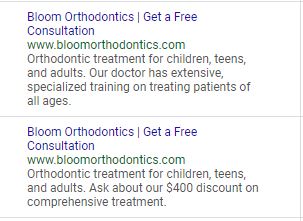
THE OK WAY TO MOCK UP Google Ads – Create your paid search ads directly in Google Ads and take a screenshot

  • Pros of using Google Ads mock-up simulator tool

Very easy. No additional tools needed. Simply hit the print screen button and copy/paste into word doc or directly into an email and send off to your client

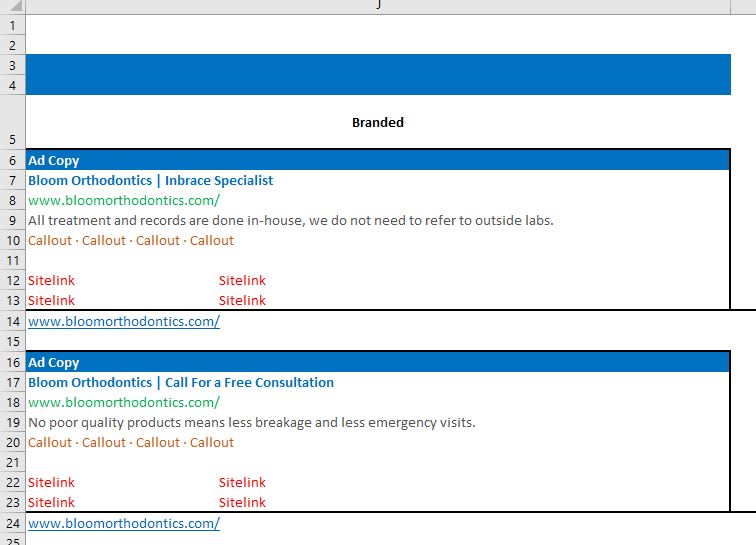
THE BETTER WAY TO MOCK UP Google Ads – Create ads in excel and format them to look like the SERP results

  • Pros of mocking up your Google ads using a spreadsheet formula Very easy. You can use any spreadsheet tool to mock up the ads.

  • Easy to format. You can build an unlimited number of ads, keywords, and even group by campaign, ad group, etc

  • The client can easily add comments, or make edits directly on the file

  • Cons of mocking up your Google ads using a spreadsheet formula

Time. Once the client approves, you need to manually re-enter the ad copies, keywords, etc into Google Ads or Google Adwords Editor. Depending on the size of your campaigns, this can take a couple of mins to hours.

  • Higher chances of human error. Once uploaded into the search engines, you will need to QA to make sure all the copy, keywords are correct.

  • Hard to collaborate and keep track of the latest versions. Emails going back and forth with the client. Editing wrong versions. Tons of comments.

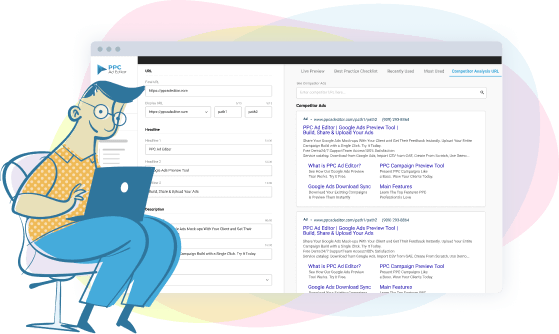
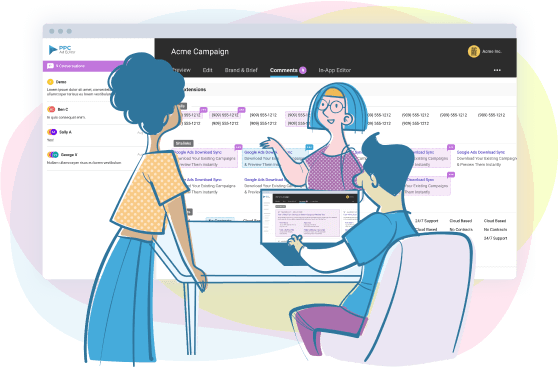
THE BEST WAY TO MOCK UP Google Ads – Use a Google ad preview tool like PPC Ad Editor that also allows you to upload your campaign directly to Google Ads
Very easy. Create your campaign, ad groups, keywords, and ad copy similar using a simple dashboard

  • Google Ads Preview mode allows you to share your campaign, keywords, and ad copies online with your client

  • Easy collaboration. Your clients can make comments right on the preview mode.

  • Fast edits. Make edits directly in preview mode

  • Fast upload. Once your client approves the campaign build, simply click upload to have it publish to Google Ads

  • Speed to market. Since you don’t have to manually upload the ads, you have more time to do your favorite things like watch Netflix.

  • Cons of using a Google ads creation tool to preview your Google ads

There is a fee. Yes, but there are different pricing levels, and entry-level pricing is offered if you are on a budget.

You can also check out our free Google ads creator tool for responsive search ads.

[Update 7/5/2021] – Try our new Responsive Display Search Ad Generator Tool

Ready to Create Better Ads?

Try PPC Ad Editor free. No credit card required.

Start Free Trial